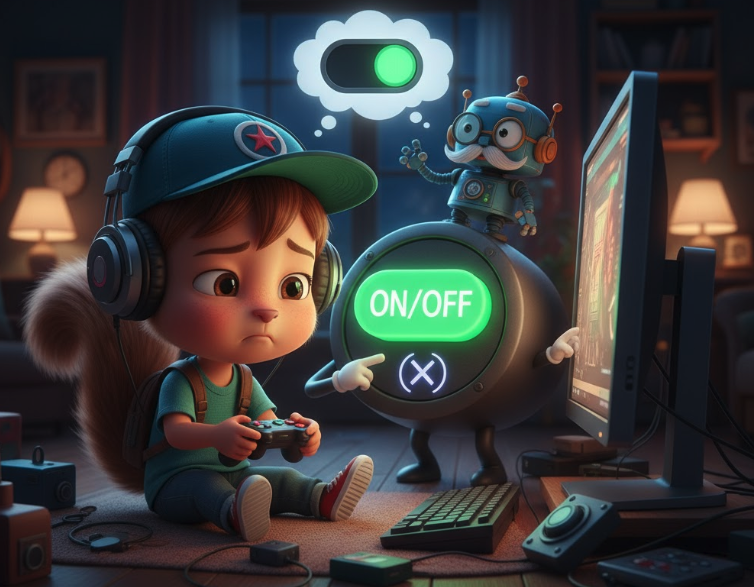
Webサイトに音声を設定したのに、いざテストしてみると「音が全然出ない…」という経験はありませんか?実は、この問題の原因はGoogle Chromeの自動再生ポリシー変更にあります。
解決策はとてもシンプルです。音声のオンオフボタンを追加するだけで、確実に音声を再生できるようになります。この記事では、その理由と具体的な実装方法を分かりやすく解説します。
音声が出ない真の原因
Google Chromeの自動再生ポリシー変更
2018年のChrome 66以降、音声付きコンテンツの自動再生が大幅に制限されました。これは、ユーザーが意図しない音声再生を防ぎ、ネットワーク帯域の消費を抑制するための変更です。
現在のChromeでは、以下の場合のみ音声付きの自動再生が許可されています:
- ユーザーがクリック、タップなどの操作を行った場合
- ユーザーが以前にそのサイトで音声付きメディアを再生したことがある場合
- ユーザーがモバイルでホーム画面にサイトを追加した場合
- ミュート状態での再生(音声なし)
つまり、ユーザーが何らかの操作をしないと音声は再生されないのが現在の仕様です。
ユーザー操作なしでは音声再生不可
以前は以下のようなコードで音声の自動再生ができていました:
// 以前は動いていたが、現在は動かない
const audio = new Audio('sound.mp3');
audio.autoplay = true;  // 自動再生設定
audio.play();  // エラー: ユーザー操作が必要
現在このコードを実行すると、ブラウザのコンソールに以下のようなエラーが表示されます:
「DOMException: play() failed because the user didn’t interact with the document first.」
これが、音声が出ない根本的な原因です。
なぜオンオフボタンが必要なのか
オンオフボタンが効果的な理由は、ユーザーの明確な操作(クリック)によって音声再生の許可を得られるからです。一度でもユーザーがボタンをクリックすれば、そのページ内では自由に音声を再生できるようになります。
さらに、オンオフボタンには以下のメリットがあります:
- ユーザビリティの向上:ユーザーが音声の制御権を持てる
- アクセシビリティの配慮:音声を好まないユーザーへの配慮
- 確実な動作:ブラウザポリシーに対応した実装
3分で実装!音声オンオフボタン
HTML5 Audioでの基本実装
最もシンプルな音声オンオフボタンの実装例です:
<!-- HTML -->
<button id="audio-toggle">🔊 音声ON</button>
<audio id="bgm" loop>
  <source src="bgm.mp3" type="audio/mpeg">
</audio>
// JavaScript
const toggleBtn = document.getElementById('audio-toggle');
const bgm = document.getElementById('bgm');
let isPlaying = false;
toggleBtn.addEventListener('click', function() {
if (isPlaying) {
bgm.pause();
toggleBtn.textContent = '🔊 音声ON';
isPlaying = false;
} else {
bgm.play().then(() => {
toggleBtn.textContent = '🔇 音声OFF';
isPlaying = true;
}).catch(error => {
console.log('再生に失敗:', error);
});
}
});より実用的な実装例
エラーハンドリングと視覚的フィードバックを追加した、実用的なバージョンです:
class AudioController {
  constructor(audioElement, toggleButton) {
    this.audio = audioElement;
    this.button = toggleButton;
    this.isPlaying = false;
    this.isEnabled = false;

    this.init();
  }

  init() {
    this.button.addEventListener('click', () => this.toggle());
    this.updateButtonState();
  }

  async toggle() {
    if (!this.isEnabled) {
      // 初回クリック:音声を有効化
      try {
        await this.enable();
      } catch (error) {
        console.error('音声の有効化に失敗:', error);
        return;
      }
    }

    if (this.isPlaying) {
      this.pause();
    } else {
      this.play();
    }
  }

  async enable() {
    // Web Audio API使用時の初期化
    if (typeof AudioContext !== 'undefined') {
      this.audioContext = new AudioContext();
      await this.audioContext.resume();
    }

    this.isEnabled = true;
    await this.play();
  }

  async play() {
    try {
      await this.audio.play();
      this.isPlaying = true;
      this.updateButtonState();
    } catch (error) {
      console.error('再生エラー:', error);
    }
  }

  pause() {
    this.audio.pause();
    this.isPlaying = false;
    this.updateButtonState();
  }

  updateButtonState() {
    if (!this.isEnabled) {
      this.button.textContent = '🔊 音声を有効にする';
      this.button.className = 'audio-btn disabled';
    } else if (this.isPlaying) {
      this.button.textContent = '🔇 音声を停止';
      this.button.className = 'audio-btn playing';
    } else {
      this.button.textContent = '🔊 音声を再生';
      this.button.className = 'audio-btn paused';
    }
  }
}

// 使用例
const audio = document.getElementById('bgm');
const button = document.getElementById('audio-toggle');
const controller = new AudioController(audio, button);
Web Audio APIでの実装
より高度な音声処理が必要な場合は、Web Audio APIを使用します:
class WebAudioController {
  constructor() {
    this.audioContext = null;
    this.audioBuffer = null;
    this.sourceNode = null;
    this.isPlaying = false;
    this.isEnabled = false;
  }

  async init(audioUrl) {
    this.button = document.getElementById('audio-toggle');
    this.button.addEventListener('click', () => this.toggle());

    // 音声ファイルの読み込み
    await this.loadAudio(audioUrl);
    this.updateButtonState();
  }

  async loadAudio(url) {
    const response = await fetch(url);
    const arrayBuffer = await response.arrayBuffer();

    // AudioContextは初回ユーザー操作時に作成
    this.audioData = arrayBuffer;
  }

  async enable() {
    if (!this.audioContext) {
      this.audioContext = new AudioContext();

      // 音声データをデコード
      this.audioBuffer = await this.audioContext.decodeAudioData(this.audioData);
    }

    // AudioContextを再開(必須)
    await this.audioContext.resume();
    this.isEnabled = true;
  }

  async toggle() {
    if (!this.isEnabled) {
      await this.enable();
    }

    if (this.isPlaying) {
      this.stop();
    } else {
      this.play();
    }
  }

  play() {
    if (!this.audioBuffer) return;

    // 新しいソースノードを作成
    this.sourceNode = this.audioContext.createBufferSource();
    this.sourceNode.buffer = this.audioBuffer;
    this.sourceNode.loop = true;

    // 出力に接続
    this.sourceNode.connect(this.audioContext.destination);

    // 再生開始
    this.sourceNode.start();
    this.isPlaying = true;
    this.updateButtonState();
  }

  stop() {
    if (this.sourceNode) {
      this.sourceNode.stop();
      this.sourceNode = null;
    }
    this.isPlaying = false;
    this.updateButtonState();
  }

  updateButtonState() {
    if (!this.isEnabled) {
      this.button.textContent = '🔊 音声を有効にする';
    } else if (this.isPlaying) {
      this.button.textContent = '🔇 音声を停止';
    } else {
      this.button.textContent = '🔊 音声を再生';
    }
  }
}

// 使用例
const audioController = new WebAudioController();
audioController.init('bgm.mp3');
より使いやすくするコツ
視覚的フィードバックの追加
ユーザーが現在の音声状態を一目で分かるように、CSSでスタイリングを追加しましょう:
.audio-btn {
  padding: 12px 24px;
  border: none;
  border-radius: 8px;
  font-size: 16px;
  cursor: pointer;
  transition: all 0.3s ease;
  margin: 10px;
}

.audio-btn.disabled {
  background-color: #gray;
  color: white;
}

.audio-btn.disabled:hover {
  background-color: #555;
}

.audio-btn.playing {
  background-color: #e74c3c;
  color: white;
  animation: pulse 1.5s infinite;
}

.audio-btn.paused {
  background-color: #2ecc71;
  color: white;
}

.audio-btn.paused:hover {
  background-color: #27ae60;
}

@keyframes pulse {
  0% { opacity: 1; }
  50% { opacity: 0.7; }
  100% { opacity: 1; }
}
設定の保存
ユーザーの音声設定をlocalStorageに保存して、次回訪問時に設定を復元します:
class AudioControllerWithStorage extends AudioController {
  constructor(audioElement, toggleButton) {
    super(audioElement, toggleButton);
    this.storageKey = 'audio-preference';
    this.loadPreference();
  }

  loadPreference() {
    const saved = localStorage.getItem(this.storageKey);
    if (saved === 'enabled') {
      // 自動で有効化はせず、ユーザーが設定可能な状態にする
      this.showEnablePrompt();
    }
  }

  savePreference(enabled) {
    localStorage.setItem(this.storageKey, enabled ? 'enabled' : 'disabled');
  }

  showEnablePrompt() {
    // 前回音声を有効にしていた場合、分かりやすく表示
    this.button.textContent = '🔊 音声を再開する';
    this.button.style.border = '2px solid #2ecc71';
  }

  async enable() {
    await super.enable();
    this.savePreference(true);
  }

  pause() {
    super.pause();
    this.savePreference(false);
  }
}
モバイル対応
モバイルデバイスでも確実に動作するよう、タッチイベントにも対応します:
// モバイル対応の改善
function initMobileAudio() {
  const events = ['click', 'touchstart', 'touchend'];

  events.forEach(event => {
    document.addEventListener(event, function enableAudio() {
      // 一度だけ実行
      document.removeEventListener(event, enableAudio);

      // AudioContextの初期化
      if (typeof AudioContext !== 'undefined') {
        const audioContext = new AudioContext();
        audioContext.resume();
      }
    }, { once: true });
  });
}

// ページ読み込み時に初期化
initMobileAudio();
よくある追加の問題と解決法
それでも音声が出ない場合
オンオフボタンを実装してもまだ音声が出ない場合は、以下を確認してください:
- 音声ファイルのパス:ファイルが正しく読み込まれているか確認
- 音声ファイルの形式:ブラウザが対応している形式か確認(MP3、WAV、OGGなど)
- ブラウザの音量設定:ブラウザやシステムの音量がミュートになっていないか
- HTTPS接続:一部の機能はHTTPS環境でのみ動作
ブラウザ別の注意点
| ブラウザ | 特記事項 | 対策 |
|---|---|---|
| Chrome | 自動再生ポリシーが最も厳しい | 必ずユーザー操作後に再生 |
| Safari | Web Audio APIの制限あり | audioContext.resume()を必ず実行 |
| Firefox | 比較的制限が緩い | 標準的な実装で動作 |
| Edge | Chromeに準拠 | Chrome対策と同様 |
デバッグ方法
音声が出ない問題をデバッグする際は、以下の手順で確認しましょう:
// デバッグ用のチェック関数
function debugAudio() {
  console.log('=== 音声デバッグ情報 ===');

  // 1. AudioContextの状態確認
  if (typeof AudioContext !== 'undefined') {
    const ctx = new AudioContext();
    console.log('AudioContext state:', ctx.state);
  }

  // 2. ブラウザの自動再生ポリシー確認
  if ('mediaSession' in navigator) {
    console.log('Media Session API:', '対応');
  } else {
    console.log('Media Session API:', '非対応');
  }

  // 3. 音声ファイルの確認
  const audio = new Audio();
  audio.addEventListener('canplay', () => {
    console.log('音声ファイル:', '読み込み成功');
  });
  audio.addEventListener('error', (e) => {
    console.log('音声ファイル:', 'エラー', e);
  });

  // 4. 自動再生テスト
  const testAudio = new Audio('data:audio/wav;base64,UklGRigAAABXQVZFZm10IBIAAAABAAEARKwAAIhYAQACABAAAABkYXRhAgAAAAEA');
  testAudio.play().then(() => {
    console.log('自動再生:', '許可');
  }).catch(() => {
    console.log('自動再生:', 'ブロック(正常)');
  });
}

// ページ読み込み後に実行
debugAudio();
まとめ:オンオフボタンで確実な音声再生を
音声が出ない問題は、Chromeの自動再生ポリシー変更が主な原因です。しかし、オンオフボタンを追加することで確実に解決できます。
重要なポイントの再確認
- ユーザー操作が必須:音声再生には必ずユーザーのクリックやタップが必要
- オンオフボタンが最適解:ユーザビリティとブラウザポリシーの両方に対応
- 一度の操作で解決:初回クリック後は自由に音声制御可能
- 視覚的フィードバック:ユーザーが現在の状態を把握できるUI設計
実装時のベストプラクティス
- エラーハンドリング:play()メソッドは必ずPromiseで処理
- 状態管理:音声の再生状態を適切に管理
- 設定の保存:ユーザーの設定を記憶してUXを向上
- モバイル対応:タッチイベントにも対応した実装
これらの実装により、すべてのモダンブラウザで安定した音声再生が可能になります。ユーザーフレンドリーな音声機能を提供し、快適なWeb体験を実現しましょう。
音声が出ない問題でお困りの方は、ぜひこの記事の実装例を参考にオンオフボタンを追加してみてください。シンプルな解決策ですが、確実に効果があります!
音声実装をさらに効率化する関連記事
音声のオンオフ機能を習得したら、JavaScript開発全般のスキルも強化してより効果的な開発環境を構築しましょう:
JavaScript・React開発関連
- useEffectを使いすぎてない?React副作用の正しい使い分けとモダンな代替手段 – React開発での音声処理実装時に重要な副作用の適切な管理方法
- 循環参照で『Cannot access before initialization』エラーが出る問題をESLintとツールで解決 – 音声ライブラリ使用時のモジュール管理エラーを予防
- 初心者エンジニア向け|Reactのバージョンアップ理由とReact 19の新機能をやさしく解説! – 最新のReact環境で音声機能を活用
フロントエンド実装・トラブル対応
- Next.jsでTailwind CSSが効かない時のよくある解決法 – 音声プレイヤーのスタイリング問題を解決
- Stripe Checkoutとは?3分で理解する決済システムの基本と実装メリット – 音声コンテンツの課金システム実装に活用